Blender 3D Creation Suite
4.21/5 (25 Reviews)
Blender is a free open source 3D creation suite supporting the entirety of the 3D pipeline.
Multimedia And Design
Video And DVD
Open Source
FREE DOWNLOAD (v4.4.0)
File Size: 345MB | Safe & Verified
Key Features of Blender 3D
- Blender 3D is a premier open source utility designed for high performance 3D modeling and advanced computer graphics rendering.
- It provides a comprehensive suite of tools supporting the entirety of the 3D pipeline including rigging animation simulation rendering compositing and motion tracking.
- The software features the powerful Cycles render engine that offers ultra realistic physically based rendering and robust support for industry standard formats like Alembic and OpenVDB.
- In 2026 it remains a vital tool for independent animators and professional studios needing a safe and verified environment for creating high quality visual effects and video games without expensive licensing fees.
- Its intuitive node based material workflow and extensive Python API for scripting make it the globally trusted choice for cutting edge digital production across all major desktop platforms.
How to get started with Blender for 3D Creation
Blender is a powerful, free, and open-source 3D creation suite used for modeling, animation, rendering, and game design. Follow these fundamental steps to set up your workspace and create your first 3D scene:
-
Download and InstallVisit the official Blender website to download the latest version for Windows, macOS, or Linux. Run the installer and launch the application to open the default startup file, which includes a camera, a light, and a default cube.
-
Navigate the 3D ViewportUse your middle mouse button to orbit around the 3D space. Hold Shift + Middle Mouse Button to pan, and use the scroll wheel to zoom in and out. Navigating fluidly is the most important first step in 3D modeling.
-
Add and Manipulate ObjectsPress Shift + A to open the "Add" menu and bring new meshes (like spheres, cylinders, or planes) into your scene. Use the core transformation hotkeys to modify them: press G to grab/move, R to rotate, and S to scale.
-
Render Your SceneOnce your models and lighting are in place, press F12 (or go to Render > Render Image in the top menu) to process your 3D viewport into a final 2D image using Blender's Eevee or Cycles rendering engines.
Pro Tip: Blender relies heavily on keyboard shortcuts and a 3-button mouse. If you are using a laptop trackpad, go to Edit > Preferences > Input and check "Emulate 3 Button Mouse" to navigate using the Alt key and left click!
Frequently Asked Questions
Yes. Blender is released under the GNU General Public License (GPL). You are free to use it for any purpose, including commercial, educational, or personal projects, without paying licensing fees or royalties.
It depends on what you are doing. Basic 3D modeling and low-poly animation can be done on most modern laptops. However, for complex physics simulations, high-resolution sculpting, or photorealistic rendering (using the Cycles engine), a dedicated GPU and a multi-core CPU are highly recommended.
Yes. Blender has robust export capabilities. You can export your textured and rigged models into industry-standard formats such as .FBX, .OBJ, or .glTF, which import seamlessly into major game engines.
Because Blender handles the entire 3D pipeline, its interface is packed with tools. Don't be overwhelmed! Start by focusing only on the "Layout" and "Modeling" workspaces at the top of the screen. As you learn more about materials, animation, or rendering, you can slowly explore the other tabs.
Technical Specifications
- Publisher: Blender.org
- License: Open Source
- Operating System: Windows 7, Windows 8, Windows 10, Windows 11
- Category: Multimedia And Design / Video And DVD
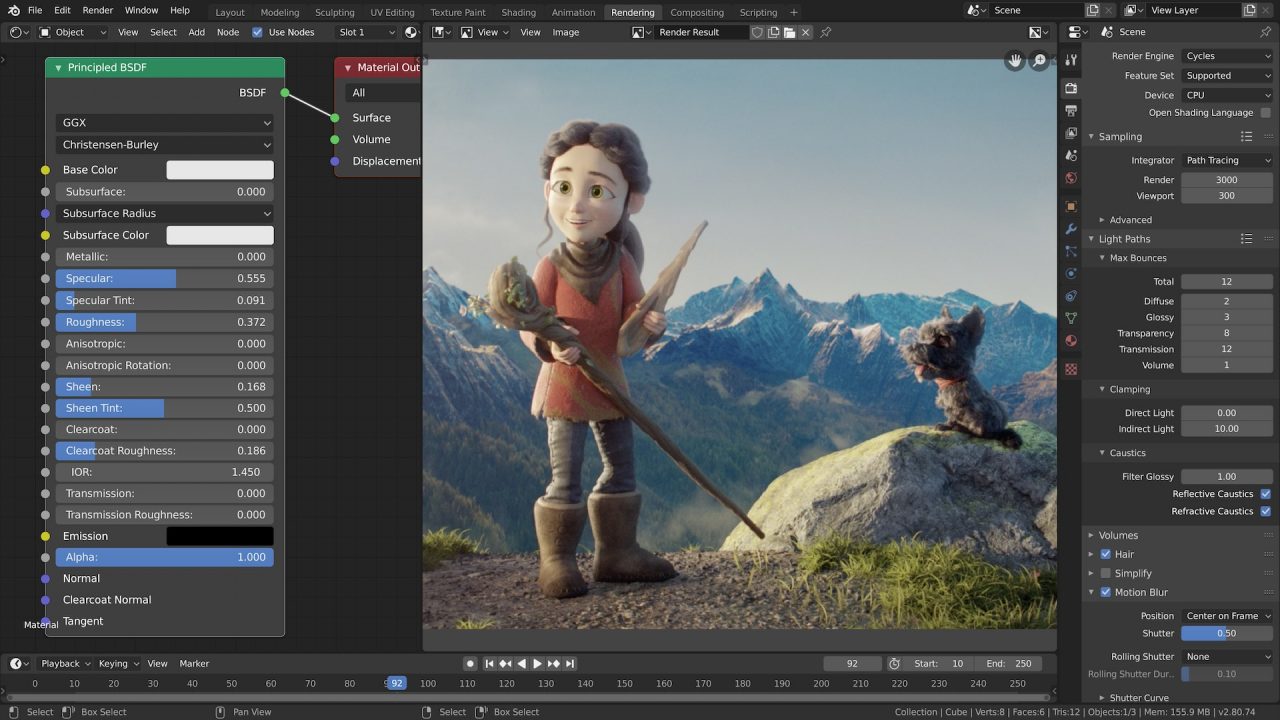
Blender 3D Screenshot